|
|
CLC2024 Support Package
| |
|
- Red colour indicates new or significantly modified services
in InterChange and InterCheck version CLC2024 4.2 (01.2025) compared to version
CLC2018 4.0 (11.2017).
- CLC2024 Support Package provides all menus, pop-up texts, information lines
and dialog boxes in English.
- Detailed help, context sensitive help and printable user's guide
(all in English) are inherent parts of the software.
- Program works fast and stable with huge polygon databases.
- Software supports Sentinel raster images provided for the CLC2024 work by the ESA/EEA.
|
|
Images, screen shots
Click images to view them in full-scale.
Click full-scale image for return to this page.
|
|
InterChange services
| |
|
Creating new project and working environment
- With the InterChange program the user can create
a new directory and file structure for each map sheet – optimized
for change detection – on which the interpretation can immediately
be started.
- Usability of commands and tools are synchronized with the actual working
phase of the project.
- Base year of the Revision and Change database, and the order of the Revision
and Change map windows can be set optionally.
- All loaded layer can transformed on-the-fly to the initially specified
coordinate system of the map windows.
- User can add WMS layer from web map server. Batch mode WMS layer loading
available.
- Multiple files and batch mode raster layer loading available.
- Advanced satellite image colour tuning can be used. If image contains
clouds or larger water surfaces, colours can be set based on an interactively
selected area.
- Modified and advanced full country/full working area
map sheet grid shows the actual status of the whole mapping task.
- Countries that use non-standard mapping procedure,
can reverse the order of the Revision and Change windows, and can modify the
base year captions of the map windows.
Polygon editing functions
The interpreter can easily
- correct errors in the CLC2018 database and create new polygons in the
Change database;
- cut out a new polygon inside a polygon;
- split a polygon into two parts;
- fully reshape a part of a polygon border in one step;
- unify two neighbouring polygons;
delete polygons in Change database.
- Flashing of the edited polygon can be switched off/on in the
Default settings window.
Tools supporting interpretation
- InterChange program displays Revision database and the Change database in
two separate map windows continually synchronising their content.
- Minimap window shows the current visible map extent
on the whole map sheet area.
- Pan tool can be quickly used by dragging map area with
middle mouse button.
- All data belonging to a selected polygon are shown in the CLC data window.
CLC code and area are visible in the status bar too.
- The program keeps checking for interpretation rules and warns the
interpreter when errors occur during data editing and data input.
- Edited data are integrated into the corresponding database with a single click.
- Interpreter can change from screen divided between two windows to full
screen view of one window with a single click.
- The environment of the selected polygon(s) can be masked out.
- Data can be edited quickly (usually also by using keyboard shortcuts).
- CLC code can be selected from a list box.
- List of valid fourth level codes can be added
in the Default settings window.
- Solar parks can be interpreted on the Change layer.
- A short comment can be added to polygons.
- Interpreter can modify also CLC2018 code of change polygons, if needed.
- Interpreter can add technical change attribute to change polygons.
- Colour of polygon outlines as well as colour and size of code labels can be
set separately for the two databases. Settings can be saved to disc and loaded
into another project.
- Centre of the workspace can be positioned to a user specified XY coordinate.
- Actual working area (coordinates and scale of the active map window) can be
saved to hard disc and can be reloaded with a click.
- Interpreter can search for polygons according to several characteristics,
such as CLC code, change type, comment, error, supervisor's remark, progress
status, area limits, change probability or technical change.
Program specially supports serial search by error correction.
- InterChange supports importing, searching and fulfilling supervisor's
remarks created with InterCheck software.
Main error prevention functions
- When selecting and writing in the CLC code, the program does not allow the
use of invalid category codes.
- When editing polygons, the program warns if the created polygon is smaller
than the size limit or is a multipart polygon.
- Non-adjacent polygons cannot be unified.
- An error checking and correcting tool helps to find and correct overlapping
or multipart polygons, selecting polygons below size limit, with shape error,
with invalid or zero code. If source data has self
crossing errors, program creates a point database to show these points.
Error checking accepts small polygons of the complex change areas.
- Error checking procedure signs polygons, that coarsely violate
the rule of the minimum polygon width.
Information support
- Visible extent of the revision database can be exported in KML format
for viewing it in the Google Earth software.
- Data table can open for all vector type database.
- With optional error colouring, the interpreter gets an overview of areas
yet to be interpreted, small polygons, polygons with shape error or without code.
- Code colouring shows interpreted areas with standard international CORINE
colour coding.
- Work status colouring allows the interpreter to follow the progress made
in change detection, the size and position of areas yet to be examined.
Work status colouring is visible in the Change window too.
- Code change colouring helps identification of those changes that are less
likely to occur, thus might need further consideration.
- Code labels are displayed with enhanced readability.
- Code labels of polygons can be switched off/on and can be refreshed.
- A temporary code label can be placed anywhere in the polygon.
- Detailed description of a chosen code can be obtained in a separate window
with a single click.
- Description might also be available in national
language instead of English (the content of the source file being the
responsibility of the national project leader).
- During drawing a line or a polygon status bar shows distance between
last click and current cursor position.
- With the area measurement tool the area of a planned polygon can be quickly
estimated.
- Advanced code, polygon area and code change statistics available.
- Wider polygon outlines as well larger code labels can be switched on before
creating screenshots for documents and reports.
- The content of the active map window only – not the entire screen
– can copied in the clipboard with a single click, for using in documents.
|
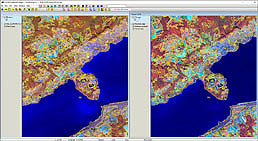
InterChange main window
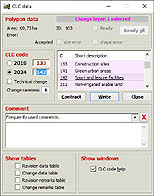
InterChange CLC data dialog
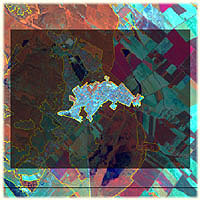
Poligon mask
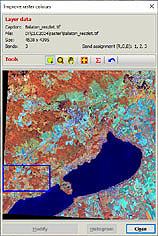
Improve raster colours dialog
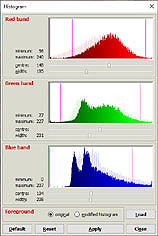
Histogram dialog
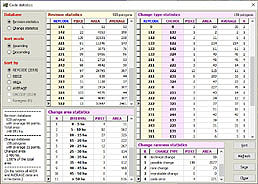
Code statistics
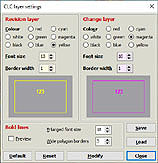
CLC layer settings dialog
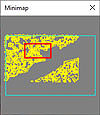
Minimap
|
InterCheck services
| |
|
Creating new project and working environment
- InterCheck can use directory and file structure created by the InterChange program.
- All loaded layer can transformed on-the-fly to the initially specified
coordinate system of the map windows.
- User can add WMS layer from web map server. Batch mode WMS layer loading
available.
- Multiple files and batch mode raster layer loading available.
- Advanced satellite image colour tuning can be used. If image contains
clouds or larger water surfaces, colours can be set based on an interactively
selected area.
- Countries that use non-standard mapping procedure, can reverse the order
of the Revision and Change windows, and can modify the base year captions of
the map windows.
Tools supporting control
- InterCheck program displays Revision database and the Change database in
two separate map windows continually synchronising their content.
- Minimap window shows the current visible map extent
on the whole map sheet area.
- Pan tool can be quickly used by dragging map area with
middle mouse button.
- All data belonging to a selected polygon are shown in the CLC data window.
CLC code and area are visible in the status bar too.
- Edited data are integrated into the corresponding database with a single click.
- Controller can change from screen divided between two windows to full
screen view of one window with a single click.
- The environment of the selected polygon(s) can be masked out.
- Data can be edited quickly (usually also by using keyboard shortcuts).
- List of valid fourth level codes
can be added in the Default settings window.
- After the control quality supervisor can set each polygon as verified.
- A short remark can be added to polygons.
- Colour of polygon outlines as well as colour and size of code labels can be
set separately for the two databases. Settings can be saved to disc and loaded
into another project.
- Centre of the workspace can be positioned to a user specified XY coordinate.
- Actual working area (coordinates and scale of the active map window) can be
saved to hard disc and can be reloaded with a click.
- Controller can search for polygons according to several characteristics,
such as CLC code, change type, comment, error, supervisor's remark, progress
status, area limits, change probability or technical change.
- An error checking and correcting tool helps to find and correct overlapping
or multipart polygons, selecting polygons below size limit, with shape error,
with invalid or zero code. If source data has self
crossing errors, program creates a point database to show these points.
Error checking accepts small polygons of the complex change areas.
- Error checking procedure signs polygons, that coarsely violate
the rule of the minimum polygon width.
- Program automatically gathers all remark files for returning to the interpreter.
Information support
- Visible extent of the revision database can be exported in KML format
for viewing it in the Google Earth software.
- Data table can open for all vector type database.
- With optional error colouring, the controller gets an overview of small polygons, polygons with shape error or without code.
- Code colouring shows interpreted areas with standard international CORINE
colour coding.
- Work status colouring allows the controller to follow the progress made
in checking procedure, the size and position of areas yet to be examined.
Work status colouring is visible in the Change window too.
- Code change colouring helps identification of those changes that are less
likely to occur, thus might need further consideration.
- Code labels are displayed with enhanced readability.
- Code labels of polygons can be switched off/on and can be refreshed.
- A temporary code label can be placed anywhere in the polygon.
- Detailed description of a chosen code can be obtained in a separate window
with a single click.
- Description might also be available in national
language instead of English (the content of the source file being the
responsibility of the national project leader).
- With the area measurement tool the area of a planned polygon can be quickly
estimated.
- Advanced code, polygon area and code change statistics available.
- Wider polygon outlines as well larger code labels can be switched on before
creating screenshots for documents and reports.
- The content of the active map window only – not the entire screen
– can copied in the clipboard with a single click, for using in documents.
|
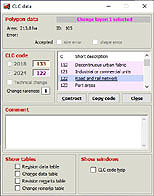
InterCheck data dialog
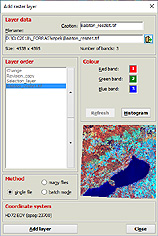
Add raster layer dialog
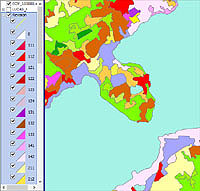
Category code colouring
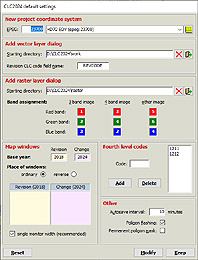
Default settings dialog
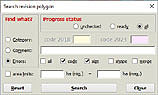
Search dialog
|
|


